
Voice Typing on Mac: How to Type with Your Voice in Any App
Learn how to use voice typing on Mac in Gmail, Slack, VS Code, and every other app. Includes setup steps, app-by-app tips, and what to do when built-in dictation isn't enough.
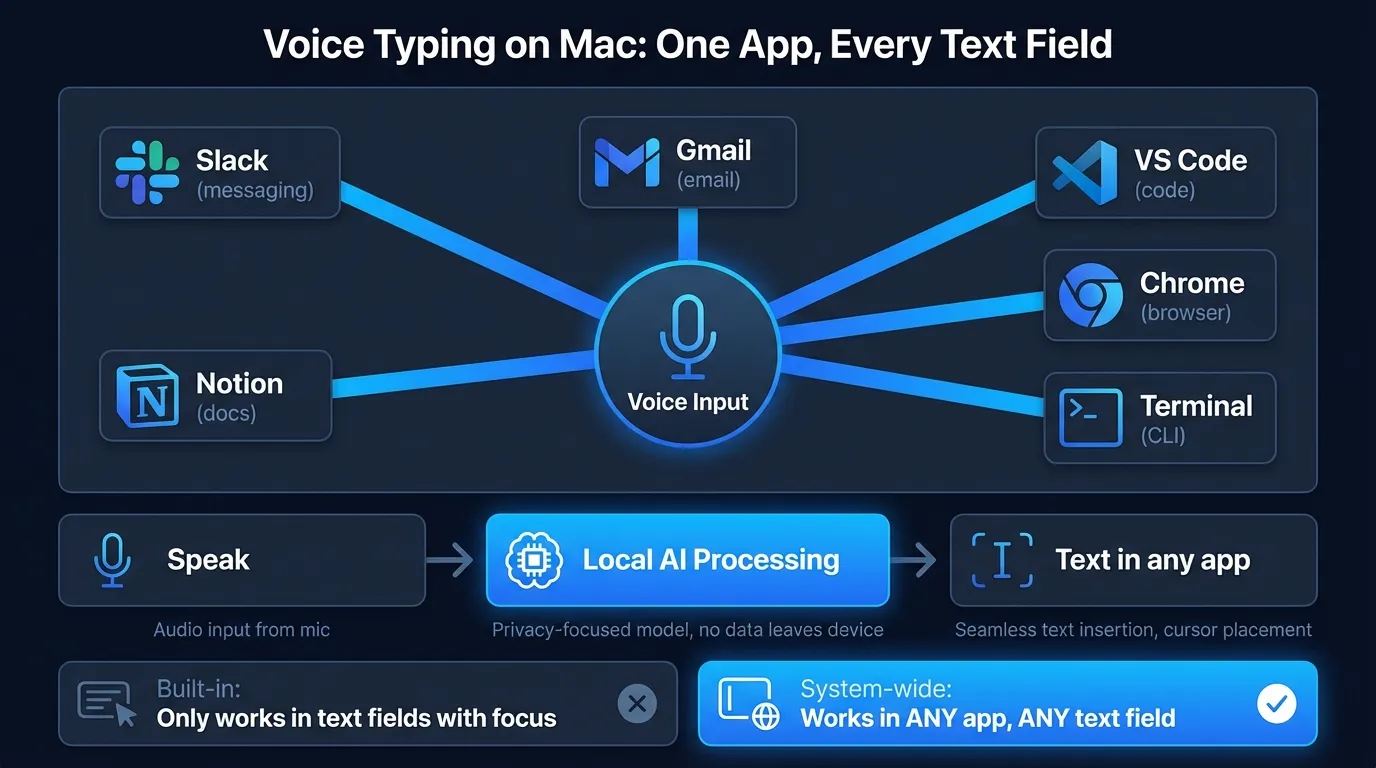
Mac voice typing works in every app with a text field — Slack, Gmail, VS Code, Notion, Terminal, anywhere. Click into a text box, press a shortcut, and speak. That's the whole workflow.
The catch is the built-in option runs out of steam after about 30-60 seconds. For quick messages, it's fine. For anything longer — a detailed Slack reply, an email, a code comment — you hit the wall and have to start over.
This guide covers how to set up voice typing on Mac, how it behaves across the apps you actually use, and what to reach for when the built-in option isn't enough.
Here's a quick look at how voice typing works across popular Mac apps:
How to turn on voice typing on Mac#
Apple calls it dictation, not voice typing, but it's the same thing.
- Open System Settings (click the Apple menu)
- Click Keyboard in the sidebar
- Scroll to Dictation and toggle it on
- Click Enable in the confirmation dialog
macOS downloads a local speech model if you're on Apple Silicon (M1 or later). On Intel Macs, audio goes to Apple's servers. That's the entire setup.
Change the shortcut#
The default is pressing Control twice. You can change it to Fn twice, either Command key twice, or the Microphone key if your keyboard has one. Go to System Settings > Keyboard > Dictation and choose from the dropdown.
Fn twice is my preference — I never use Fn for anything else, so there's no conflict risk.
Turn on auto-punctuation#
Toggle Auto-punctuation on in the same settings panel. It inserts commas and periods automatically without you having to say them. Not perfect — it occasionally puts a period mid-sentence — but it's better than saying "period" after every sentence.
Voice typing app by app#
The shortcut and basic behavior are identical everywhere: click into a text field, trigger the shortcut, speak, stop. But each app has quirks worth knowing.
Gmail and web-based email#
Voice typing in Gmail works well for both subject lines and the body. Click into the compose window, press your shortcut, dictate.
One issue: Gmail's compose window is a div element, not a standard text input. Most of the time this doesn't matter — macOS handles it fine — but occasionally dictation pastes into the wrong spot if you switch windows mid-dictation. Keep Gmail in focus while speaking.
The built-in 30-60 second limit matters most for email. If you're writing anything beyond a paragraph, you'll have to pause and restart multiple times.
Slack#
Slack works reliably for voice typing. Click into the message input, press your shortcut, speak, and press Enter. The message composes and sends like any typed message.
Where Slack voice typing actually shines: long explanations that you'd abbreviate when typing. Speaking is faster than typing for anything over three sentences, and Slack rewards detail (code review feedback, async status updates, technical explanations).
The built-in dictation time limit is less annoying here because most Slack messages are short. For longer messages, you'll still hit it.
Chrome and browser apps#
In Chrome, voice typing works in any text field — search bars, comment boxes, forms, Google Docs, Notion. The behavior is consistent because Chrome handles text input the same way across its UI.
Google Docs has its own built-in voice typing under Tools > Voice Typing. It's a different feature from macOS dictation — it's web-based and sends audio to Google's servers. macOS system dictation is faster for short edits; Google's voice typing handles long-form dictation better since it doesn't time out.
For Google Docs on Mac, you have three options:
- macOS built-in dictation (30-60 second limit, on-device on M-series)
- Google's built-in voice typing (unlimited, cloud-based)
- A third-party app like Hearsy (unlimited, fully local)
VS Code#
VS Code handles voice typing well in the code editor itself. Click into the editor, trigger your shortcut, speak. Text appears at your cursor position.
There's a limitation: dictating actual code is awkward with natural language. Say "const user equals open curly brace name colon string close curly brace" and what you actually want to write becomes a memory challenge. Voice typing in VS Code works best for:
- Code comments and documentation
- Commit messages
- README content
- Search and terminal commands
For the terminal panel inside VS Code, behavior depends on which terminal you're using. The built-in terminal usually accepts dictation, though results vary. If dictation isn't working in the terminal, switch to the dedicated Terminal app — that works more reliably.
Notion#
Notion voice typing works, but the rich text editor can occasionally misplace text if you click into a block while dictation is active. Work from top to bottom, keep your cursor in one block while speaking, and you'll be fine.
Dictating into Notion works well for brainstorming, meeting notes, and drafting. The 30-second limit is more painful here because long-form content is exactly what Notion is for.
Notes and Pages#
These are the most reliable apps for Mac voice typing. Both use native macOS text inputs, so dictation integrates without friction. No time limit quirks, no focus issues. If voice typing is acting weird in a browser-based app, test it in Notes first to confirm the dictation setup itself is working.
Terminal#
Voice typing in Terminal works but is limited in practical value. You can dictate commands, but dictation models transcribe "git commit dash m" rather than git commit -m. You'd need to speak in a way that maps cleanly to terminal syntax, which is unnatural.
Better use case: dictate into a scratchpad, then copy the command manually.
Type at the Speed of Speech
Hearsy turns your voice into text instantly — right on your Mac, with zero cloud dependency.
Where built-in voice typing falls short#
The 30-60 second limit#
This is the main problem. Apple's dictation stops listening after roughly 30-60 seconds of continuous speech — this has been a persistent behavior across multiple macOS versions, confirmed by the Apple Community forums. There's no supported way to extend it.
For anything more than a few sentences, you're managing the shortcut constantly instead of just speaking.
No continuous session#
Related to the time limit: you can't start talking and continue for 5 minutes straight. The model isn't designed for it. Each dictation session is short and discrete.
Accuracy with technical terms#
Built-in dictation handles common English well. Technical vocabulary — programming terms, product names, domain-specific jargon — gets mangled more often. You can't add custom words or train it on your vocabulary.
In noisy environments, accuracy drops further. Apple's documentation doesn't publish accuracy numbers, but third-party testing suggests a meaningful drop in ambient noise compared to a quiet room.
No post-processing#
What you say is literally what you get. Every "um," every repeated phrase, every sentence-level false start ends up in your document. There's no cleanup layer.
Third-party voice typing apps for Mac#
If you need to speak for more than a minute at a stretch, or want AI cleanup on what you dictate, third-party apps are the answer.
All of them work by the same mechanism: record your audio, run a speech model, then paste the result into whatever app is in focus. This means they work in every Mac app — browser-based or native, regardless of the text input type.
How the clipboard paste method works: When you finish speaking, the app copies your transcription to the clipboard and simulates Cmd+V in whatever window is active. This is more reliable than direct text injection for apps like VS Code and web apps where direct dictation APIs are inconsistent. The trade-off is that it briefly overwrites your clipboard contents.
Apps that take this approach include Hearsy, SuperWhisper, and VoiceInk, among others. They differ in:
- Model choice: Hearsy supports both Parakeet (under 50ms latency, optimized for Apple Silicon) and Whisper. SuperWhisper uses Whisper. Parakeet is faster; Whisper handles more languages (99+ vs. 25 for Parakeet).
- AI post-processing: Some apps offer optional LLM cleanup that removes filler words and fixes grammar. Hearsy's enhancement step can reformat dictation as an email, code comment, or clean prose.
- Privacy: Hearsy and SuperWhisper run everything on-device. Wispr Flow uses cloud processing, which means audio leaves your Mac.
- Pricing: Hearsy is a one-time purchase. SuperWhisper and Wispr Flow charge monthly or annual subscriptions.
For a full comparison, see the Mac dictation guide.
Tips for better voice typing results#
Find a quiet spot. This matters more than microphone quality. Background noise — HVAC, traffic, music — degrades accuracy on every model, built-in or third-party.
Use a headset or directional microphone. Your MacBook's built-in mic works, but a headset mic 6-8 inches from your mouth performs noticeably better. The consistent distance helps more than the mic hardware itself.
Speak in complete sentences. Dictation models have more context to work with in full sentences. Single words and fragments get misrecognized more often.
Don't overcorrect mid-sentence. If you realize you said the wrong thing, finish the sentence and correct it after. Trying to backtrack mid-speech confuses the timing and often makes things worse.
Set a consistent shortcut. Pick one shortcut and use it everywhere. Switching between apps shouldn't require you to remember different activation methods.
Test in Notes first. Notes is the most reliable app for Mac dictation. If something seems off, open Notes and dictate a sentence to confirm your setup is working before blaming the target app.
Frequently asked questions#
How do I enable voice typing on Mac?#
Open System Settings, click Keyboard, scroll to Dictation, and toggle it on. The default shortcut is pressing Control twice. It works in any app with a text field.
Does voice typing work in Slack on Mac?#
Yes. Click into any Slack message box, trigger your dictation shortcut, and speak. Built-in Mac dictation and third-party apps both work in Slack without any special setup.
Can I use voice typing in VS Code on Mac?#
Yes. Click into the VS Code editor, activate your shortcut, and speak. Voice typing works best for comments, documentation, and commit messages rather than actual code syntax.
What is the time limit for Mac voice typing?#
Apple's built-in dictation stops after roughly 30-60 seconds of continuous speech. Third-party apps like Hearsy have no time limit.
Is there a voice typing app that works in every Mac app?#
Yes. Apps like Hearsy use clipboard paste and keyboard simulation to inject text into any Mac application, including browser-based apps and editors where direct dictation APIs are inconsistent.
Ready to Try Voice Dictation?
Hearsy is free to download. No signup, no credit card. Just install and start dictating.
Download Hearsy for MacmacOS 14+ · Apple Silicon · Free tier available
Related Articles
Voice Typing in Google Docs: The Complete 2026 Guide
10 min read
How to Set Up Voice Recognition on Mac in Under 2 Minutes
8 min read
Voice Control on Mac: Complete Guide to Hands-Free Mac Usage
12 min read
Speech to Text on MacBook: M-Series Performance Guide
8 min read
Speech to Text on Mac: The Complete 2026 Guide
13 min read